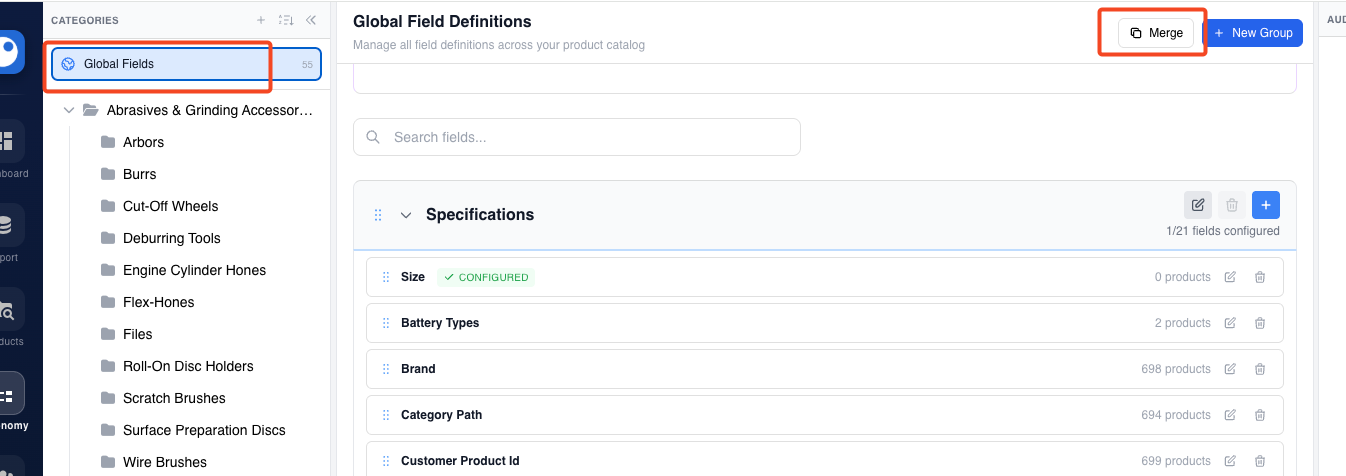
What are "Links"?
Links tie specific fields (attributes) to a taxonomy category node. When you link a field to a category, you're telling PIM's enrichment agent: "For any product in this category, go find and populate this field." This is different from "Fields Used," which shows fields that already have data across products — Links are intentional, manual assignments you make.
Step 1: Navigate to the Taxonomy Section
- Log into PIM at pim.proton.ai
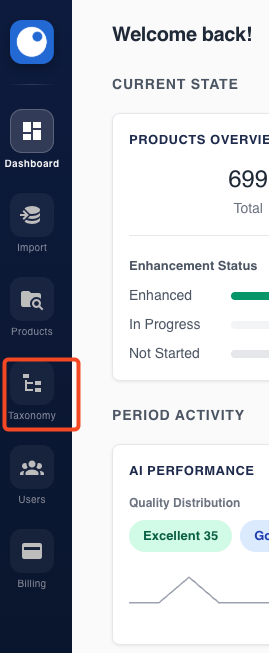
- Click "Taxonomy" in the left-hand navigation menu
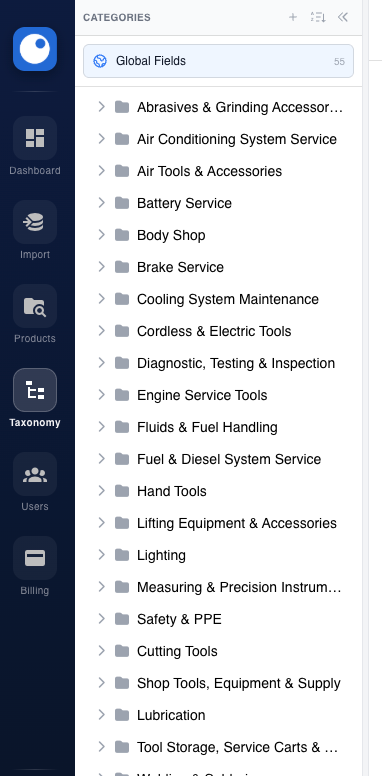
- You'll see the taxonomy tree structure on the left panel (category → subcategory → sub-subcategory)
⚠️ Admin access required — Only Admin users can access the Taxonomy section. Regular users will not see it.
Step 2: Select a Category Node
- On the left panel, browse the tree structure of categories
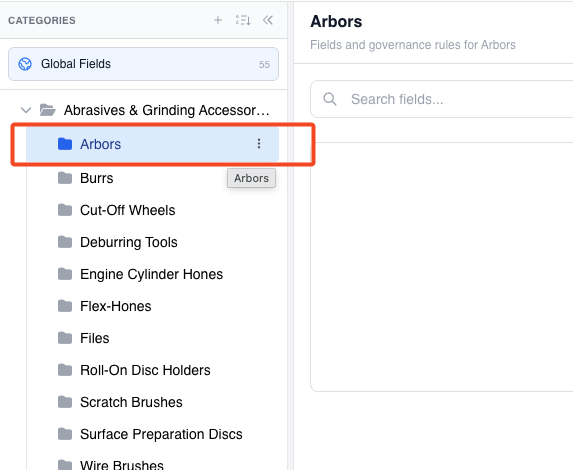
- Click on the specific category/subcategory you want to add a link to
- Make sure the folder is highlighted — the link will be applied to whichever node you have selected
Step 3: Add a Link
- With your category node selected, click the "Links" tab at the top of the panel
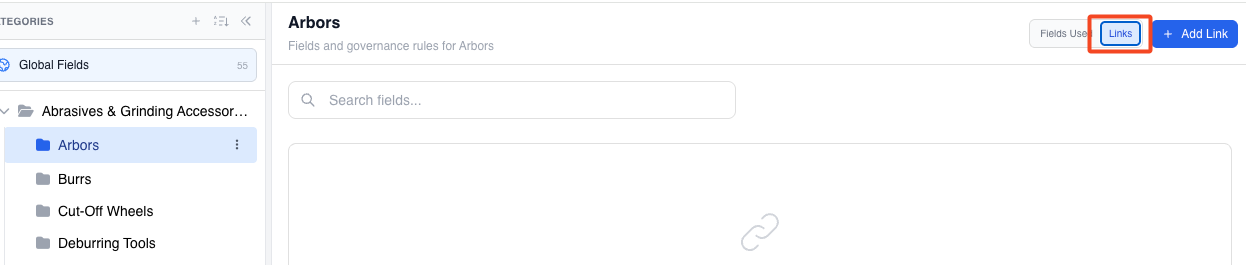
- Click the "Add Link" button (top right area)
- A dropdown/list will appear showing all available fields from the global level
- Fields are auto-sorted by most used in that category (if products have been enriched)
- You can search for a specific field by name
- Click on the field you want to link (e.g., "com code", "thread style", "size", etc.)
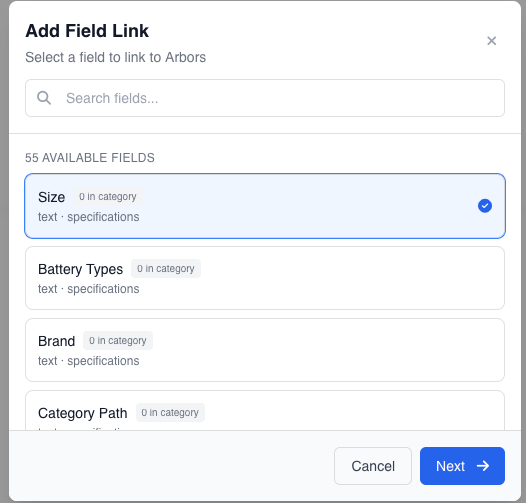
- The field is now linked to that category node
💡 Tip on "Required" checkbox: You do NOT need to click "Required." Simply linking the field tells the agent to go get it. "We've actually seen better results from not clicking required."
⚠️ One at a time: Links are added one by one — you cannot select multiple fields simultaneously.
Step 4: Verify the Link Works
- Navigate back to Products
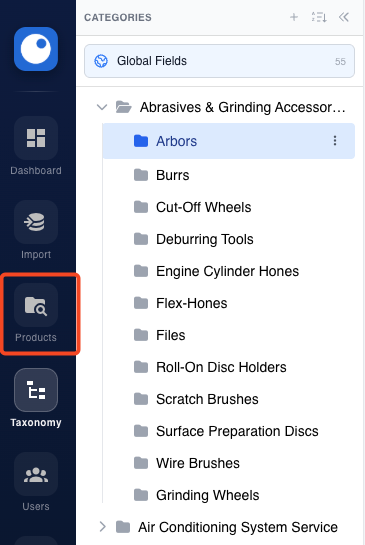
- Find a product that falls within the taxonomy node where you added the link
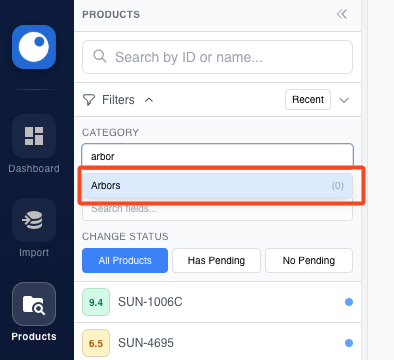
- Re-enrich or enrich the product
- Confirm the new field is now being populated for that product
Editing / Removing Links
- To remove a link, go back to the category node → Links tab, and delete the linked field
- To re-link a field (e.g., if you rejected a field from a product and need to restore it), navigate to the taxonomy node, go to Links, and add the field back via "Add Link"
- You can also merge fields if two fields are pulling in the same/overlapping values — this option is available within the taxonomy section